Back to the model
Instructions:
- Save a copy of this file (description.htm) in a folder of your computer.

- Find a photo from the Internet.
- Save it in the same folder as this file (description.htm).
- Rename your photo and call it "face.jpg".
- Open description.htm with a text editor (notepad.exe or gedit).
- Write the title where it says "This is the title".
- Write a description where it says "This is the description of the photo".
- Save the changes to "description.htm".
- Open "description.htm" with your Internet browser (Firefox, Opera, Chrome, MS Explorer...) and check it.
- Send "description.htm" and "face.jpg" to your teacher through Educamos.
Instructions to send files through Educamos:
- Go to Educamos
- Write your username and password
- Click on "Iniciar sesión".
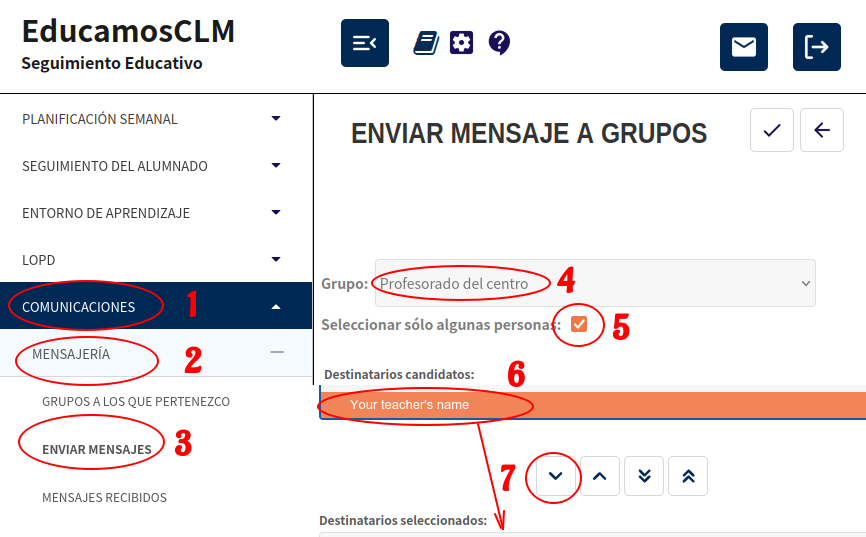
- Select "Seguimiento educativo".
- Select "Comunicaciones" → "Mensajería" → "Enviar mensajes" → "Profesorado del centro" → "Seleccionar sólo algunas personas"
- Click on your teacher's name.
- Click on the down arrow symbol:

- Click on "Adjuntar" → "Examinar" and select "description.htm".
- Click on "Añadir" to upload that file.
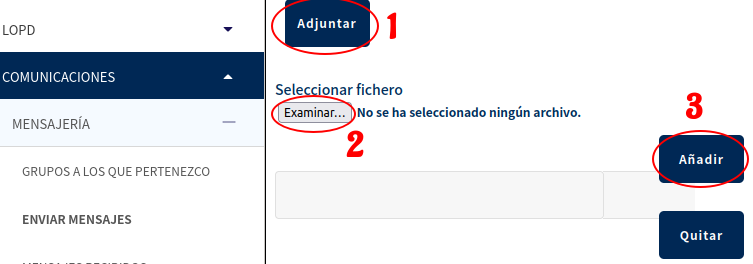
- Repeat steps 8 and 9 to upload "face.jpg".
- Write "web page" in the "Subject" line.
- Write "Here's my web page." in the message.
- Click on the TICK symbol:
 to send me your message with both files.
Back to the model


