Back to index
INDEX
  • Basic operations with files using Windows explorer
  • Types of files
  • Using Windows Notepad
  • Essential information in a web page
  • Saving your file
  • Changing the extension / Making extensions visible (from .txt to .htm)
  • Creating a folder or a file
    You can organise information in a computer using files and folders.

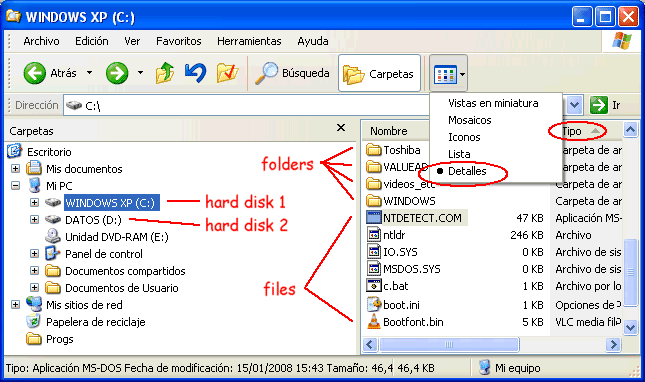
    The easiest way to see how information is organised is to open the Windows Explorer: right-click on the Start button and select "Explore":

    The Windows Explorer shows disk units and folders on the left, and folders and files on the right.

    You can select different ways to see your folders and files. In this example, we have selected the Details view, and we have sorted (=organised in a list) all the folders and files according to their type. Within each type, folders and files are automatically sorted in alphabetical order.

    From the Windows Explorer you can do some basic operations: create, delete, move and rename a folder or a file.

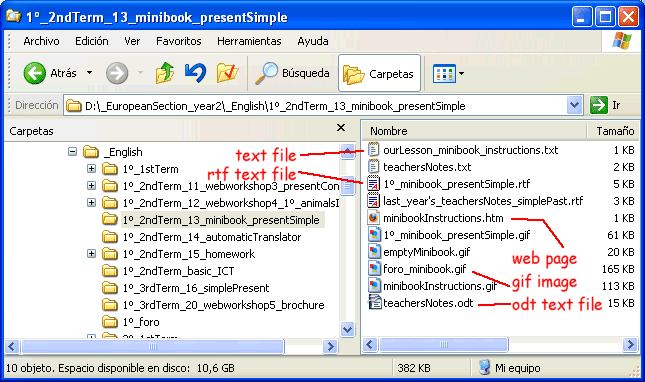
    Folders can contain files and other folders. There are two main types of files: executable files, with the instructions for the programs, whose extensions are .exe or .com, and data files, which contain many different kinds of information.

    Data files can have many different extensions, depending on their content; many programs use only one type:
    • .txt (Notepad.exe) for plain text.
    • .rtf (Wordpad.exe) for rich text format, which includes different text types, colour and sizes.
    • .doc (Word.exe), .odt (swriter.exe - Open Office), wp6 (wp.exe - WordPerfect) for complex text and graphic information.
    • .jpg, .jpeg and .png for photos.
    • .gif for simpler images.
    • .mp3 for sounds.
    • .flv and .mp4 for video.
    • .htm or .html for web pages.
      etc.
    For example, if you work with Open Office, all your data files containing texts and documents have an .odt extension.


    When you double-click on a data file, it opens with the most appropriate program. For example, when you double-click on an .htm file, it opens with your predetermined Internet browser program: Internet Explorer (iexplore.exe), Firefox (firefox.exe), Netscape (netscape.exe), etc.

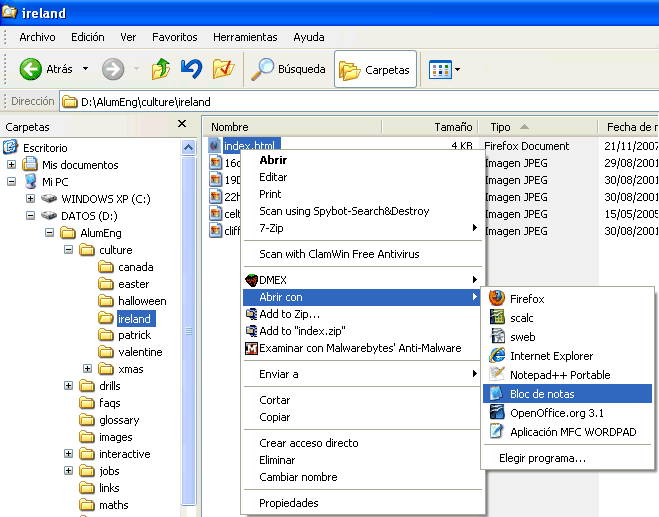
    You can also open an .htm file (and many other kinds of files) with different programs to do different things. For example, you can use a plain text editor like notepad.exe to write an .htm file (a web page).

    The simplest .txt editor is notepad.exe. To open an .htm file with notepad, you can can right-click on the file name and then select the notepad.exe in the list of programs (see the picture on the right).

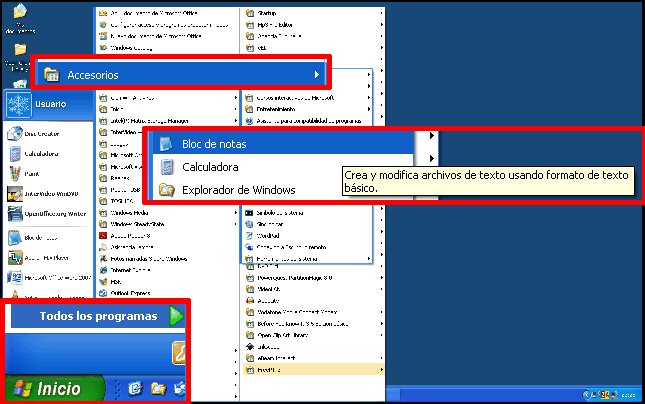
    You can also open notepad.exe from the Start menu: select the menu options All programs / Accessories / Notepad.

    Then you can use the File / Open menu to find and open the .htm file.


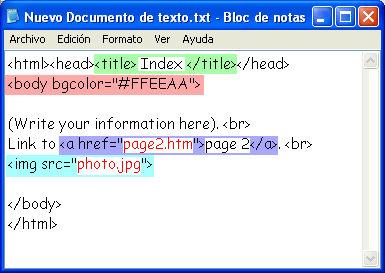
    The essential information in a web page consists of some initial codes which include a title for your webpage and a background colour at the beginning, and some other final codes at the end. The information appears between the initial and the final codes.

    Apart from text, a web page usually contains images and links to other files. They are distinguished from plain text using special codes. With notepad you can write all the necessary codes to show the information, the images, and the links to other files.

    In this example, there is a link to another page called page2.htm; the link appears as page 2. There is also an image called photo.jpg.


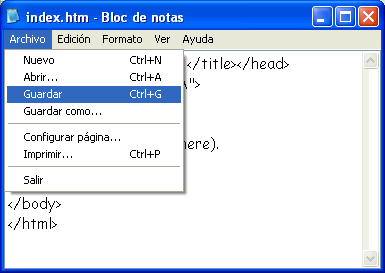
    When you finish writing the information in your web page, you have to save your file. Think of a name for your file, for example, "index.htm". Use the menu options File / Save, then write the name and press ENTER.

    If you don't give your file an extension (for example, if you call it "file"), Windows will give it the .txt extension automatically: "file.txt". But if you call it "file.htm", it will be saved as an .htm file - but only if you make Windows Explorer show the extensions.

    You can use the menu option "Save as" if you want to make a copy of your file with a different name.


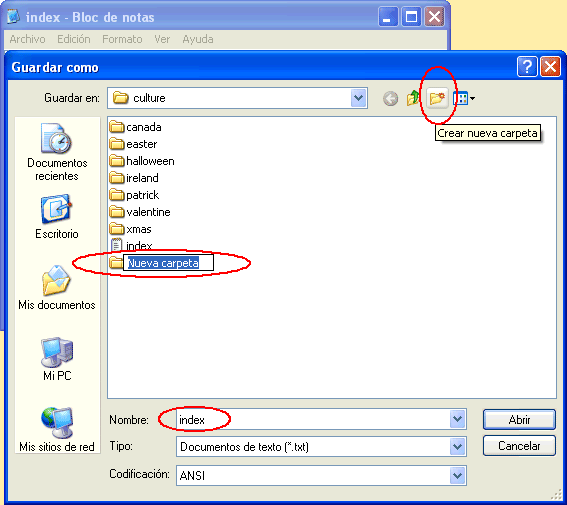
    If you want to save your file in a new folder, you can create it when you save your file: click on the "new folder" icon, write a name for your folder and press ENTER.


    To change the file extension select the file name and press F2, then write the new file name and press ENTER.

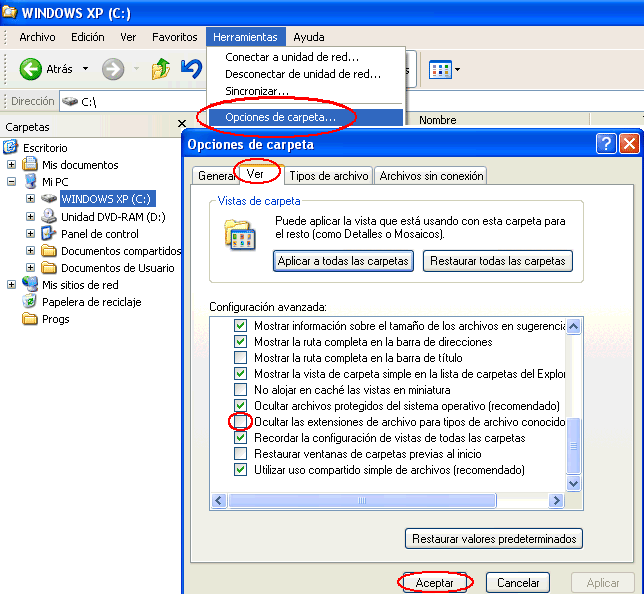
    If you can't see the file extension, first you need to make extensions visible (by default, they are hidden).

    To do this, select on the menu the options Tools / Folder options, then select the See tab, then unmark the box that reads "Hide the file extensions for known types of file", and click on "Accept".


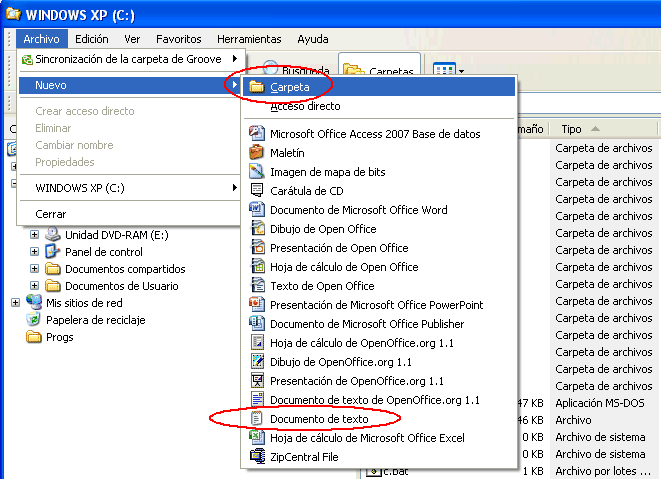
    To create a folder, select in the Windows Explorer menu the options File / New / Folder.

    To create a file, select in the Windows Explorer menu the options File / New / Text file. If you want a different type of file which is not in the list, you can change the file extension.


    To delete a folder or a file, click on its name to select it, then press the DEL key.


    To move a folder or a file, first click on its name to select it, then press CTRL+X or SHIFT+DEL to cut it (if you use CTRL+C or CTRL+INS you can copy the file instead of cutting it); then click on a different folder where you want to move it, and press CTRL+V or SHIFT+INS to paste it.


    To change the name of a folder or a file, click on its name to select it, then press F2, write the new name, and press ENTER.

    If you also want to change the file extension, first you need to make extensions visible.


    JJCC